The viewer
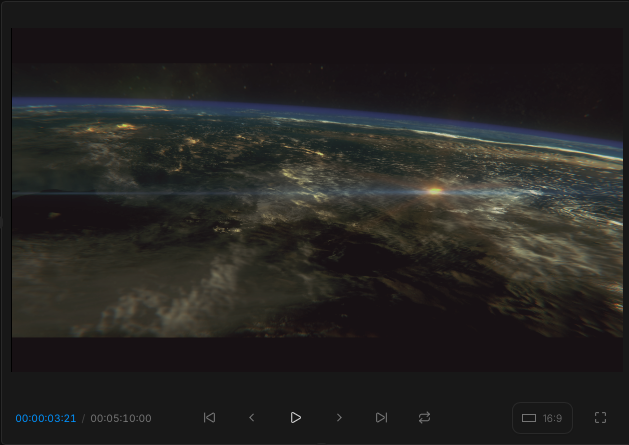
The viewer is the central panel of the Color tab — your real-time view of the timeline as you grade. It shows you the current frame, with playback controls and a couple of view modes layered on top.
Timecodes
In the bottom-left corner of the viewer you'll see two timecodes:
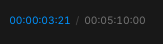
- Timeline timecode, in blue — your position in the timeline.
- Clip timecode, next to it — your position inside the current clip.
Playback controls
Beside the timecodes are the standard transport controls:

- Play / pause.
- Loop — when on, the clip you've clicked on plays in a loop, useful for reviewing a single shot's grade in motion.
- Previous / next clip.
- One frame back / one frame forward.
Keyboard shortcuts
The viewer is built to be driven from the keyboard once you know the shortcuts:
| Action | Shortcut |
|---|---|
| Play / pause | Space |
| Previous clip | Up arrow |
| Next clip | Down arrow |
| One frame back | Left arrow |
| One frame forward | Right arrow |
View selection
Next to the transport controls is the view selection toggle. It reformats the timeline view between:
- 16:9 — landscape, the standard cinema and TV aspect ratio.
- 9:16 — portrait, for vertical / social-first deliverables.
The toggle changes how the timeline is composed inside the viewer; the source clips themselves are unchanged.
Full screen
To the right of the view selection is the full-screen button. Click it to expand the viewer to fill the whole screen, hiding the surrounding panels — useful when you want to assess a grade without any UI noise around it.