Projects
A project is your top-level container for a piece of work in Colourlab Ai 4 — a film, a commercial, a photo series, a corporate piece. Projects hold their own clips, references, looks, and timelines. Everything you do inside Colourlab Ai 4 happens inside a project.
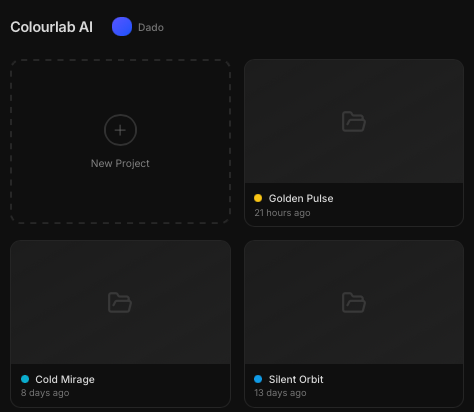
Colourlab Ai 4 keeps every project in its database, so the first thing you see when the app opens is the list of all the projects belonging to the current user.
Creating a project
Create a new project from the project list. Colourlab Ai 4 suggests a name for you — handy when you want to move fast — but you can rename it at any point. The same goes for bins you create inside the project: each one comes with a sensible suggested name, which you're always free to override.
Once the project is created, click it to go inside.
Working with existing projects
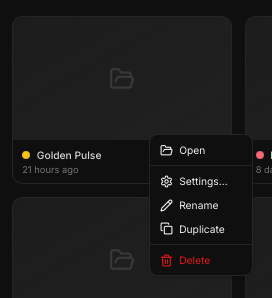
Right-click any project in the list to:
- Rename the project.
- Duplicate the project — useful when you want to fork a piece of work and try a different direction without losing the original.
- Delete the project.
Project settings
Each project carries its own settings panel where you can change:
- Timeline frame rate
- Timeline resolution
- Aspect ratio
- …and the rest of the project-level options.
See Settings for the full list and what each option controls.