Properties panel
The Properties panel is the rightmost tab on the right side of the Color tab. It carries the per-clip settings that aren't part of the grade itself — the input transform on the clip, and the clip's geometry inside the frame.
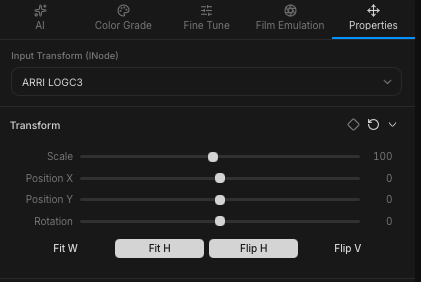
Input transform (iNode)
The top of the Properties panel shows the iNode (coming soon) currently applied to the clip — the input transform that converts the source footage into the working color space. (In standard color-management vocabulary, this is the IDT.)
This is the same input transform you picked during import. If you imported quickly and want to change it later, this is where you do it: pick the correct iNode for the source camera or color space, and the rest of the grade updates accordingly.
Geometry
The bottom of the panel holds the clip's geometric transforms. Use these to reposition or reshape the clip inside the output frame:
- Scale — zoom the clip in or out.
- Position X / Y — slide the clip horizontally or vertically.
- Rotate — rotate the clip around its centre.
- Flip horizontal / Flip vertical — mirror the clip on its X or Y axis.
- Fit image Horizontally or Vertically
These transforms are useful for any number of small fixes: re-framing a wide shot, correcting an upside-down phone clip, mirroring an unintentionally-reversed take, or pushing in slightly on the action. They affect only the geometry — the grade itself is untouched.