Settings
The Settings panel is the single place in Colourlab Ai 4 where every adjustment to the system lives. If you're trying to change how something behaves — where things are stored, what frame rate the project runs at, how references are named, what license is active — Settings is the answer.
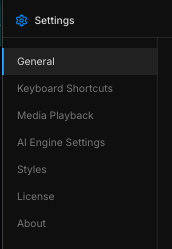
Settings is split into the following tabs:
- General
- Keyboard Shortcuts
- Media Playback
- AI Engine Setting
- Styles
- License
- About
General
Project- and system-level settings for the active project.
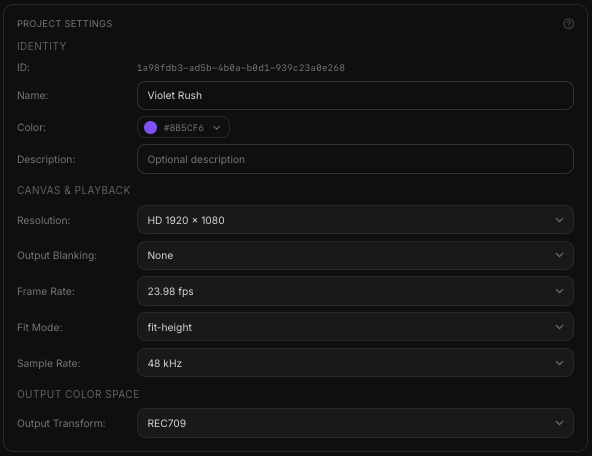
Project settings
- Project name — the name of the active project; you can rename it here.
- Accent color — a marker color that makes the project easier to recognize at a glance.
- Description — free text you can add to the project so it's easier to identify later.
Canvas & playback
- Resolution — Colourlab Ai 4 works in HD and UHD, in both horizontal and vertical orientations.
- Output blanking — turns a horizontal (HD) frame into CinemaScope 2.39:1, adding black bars at the top and bottom. Output blanking is only active when you're working in a horizontal resolution.
- Fit mode — how media that doesn't match the canvas is scaled by default: fit by height or fit by width. This sets the global default; you can override it per clip from the Properties panel.
- Audio sample rate — 44.1 kHz or 48 kHz.
- Output color space — the same color space setting found on the Color tab; it specifies the color space you want to view and output in.
The default settings are usually the best ones.
Frame rate
The timeline's playback frame rate. Supported rates:
- 23.98
- 24
- 25
- 29.97
- 30
59 fps and above are not currently supported. If you bring in a clip recorded at a higher frame rate than the project's setting, the clip is slowed down to fit the timeline; clips at a lower frame rate are sped up. Plan accordingly when ingesting footage.
Database
The database is where the core of Colourlab Ai 4's know-how lives — every project, reference, and timeline. Look after it.
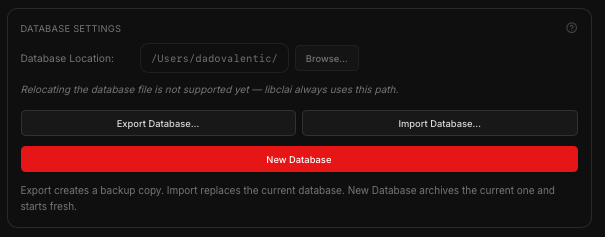
Location — where the database is stored:
~/Library/Application Support/ai.colourlab.editor/This location can't be changed at the moment. There's a Browse button next to the path, but it's inactive for now.
- Database size — shown here so you can keep an eye on it. It's worth checking occasionally: across several large projects the database can grow to several gigabytes. Monitor it against the free space on your drive — without enough free space, Colourlab Ai 4 can't function.
- Export Database — write a full backup to disk. Use it for backups before risky operations or for archival.
- Import Database — recover from a previously-exported backup.
- New Database (red button) — automatically backs up the current database, then creates a fresh, empty one. A good option when the database has grown very large and you want to start from zero; nothing is lost, since the old database is backed up and can be re-imported anytime.
That's the General tab.
Keyboard Shortcuts
The Keyboard Shortcuts tab lists every keyboard shortcut in Colourlab Ai 4. You can customise any of them:
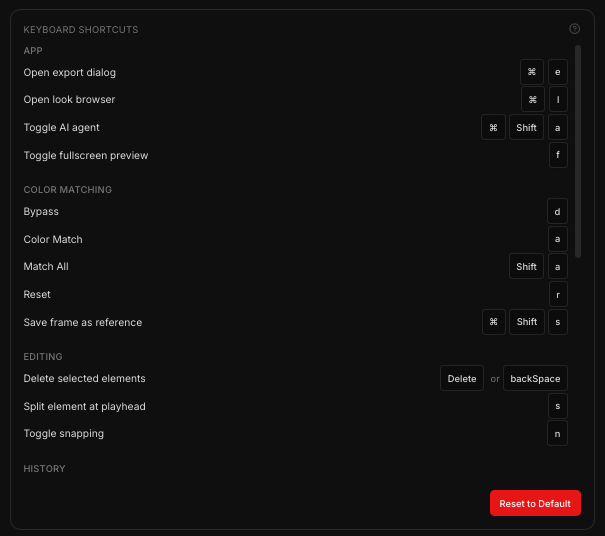
- Click a shortcut to record a new key combination.
- Reset to defaults at the bottom to wipe your customisations.
Expect this list to grow as more of the application surface becomes keyboard-driven.
AI Engine Setting
Color agent
The AI color-grading agent currently performing your matches and look building. Right now there's a single option:
- Agent v1.
Newer agent versions will become selectable here as they're released.
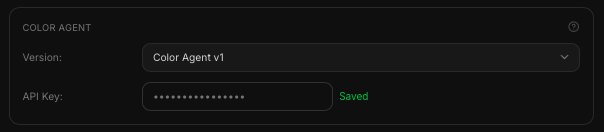
API key
Fixed in public beta. You don't need to provide an API key during beta — matching and look building use the built-in account. The API key field is here for the future, when bringing-your-own-agent (with your own key) may be supported.
PIA Engine
The smart core of Colourlab Ai 4 — the perceptual image analyzer that powers references, sorting, matching, and intent. See PIA Engine (coming soon) for the engine internals.
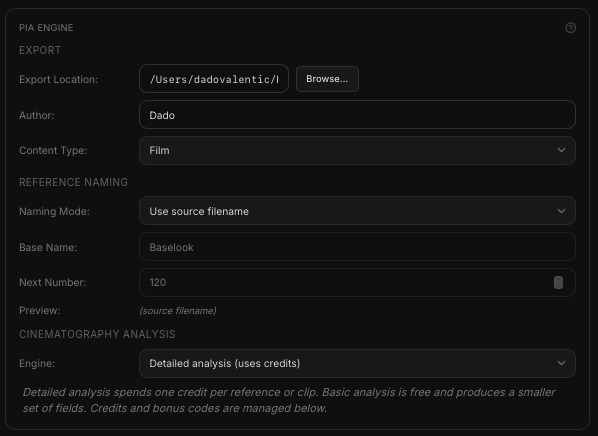
X03 export location
Where Colourlab Ai 4 writes the X03 reference files it generates. X03 files live on disk; they aren't used directly during grading (the active reference data is loaded into the database), but when you're moving references in and out of the application, this is where they're read from and written to.
Author
The name stamped onto X03 files you generate. Auto-populated from your system username, but editable.
Content type
A classification you can attach to references you create — useful for sorting and filtering them later by the kind of content (drama, documentary, commercial, and so on).
Reference naming
How Colourlab Ai 4 names new references when you create them:
- Source file name (default) — use whatever the original image was called.
- Auto-name with base name — use a base name plus an auto-incremented number.
If you choose auto-naming, you can edit the base name; the number is managed by the application and tracked internally — leave it alone.
Cinematography analysis
The depth of analysis run when references are imported:
- Detailed (default) — full cloud-processed cinematography palette. Uses credits.
- Basic — local-only, no credits.
Switch to Basic when you're offline or running low on credits and still want to bring references in. You can run Detailed analysis on those references later.
Account
The bottom of the PIA Engine tab shows your credits balance and lets you redeem credit codes:
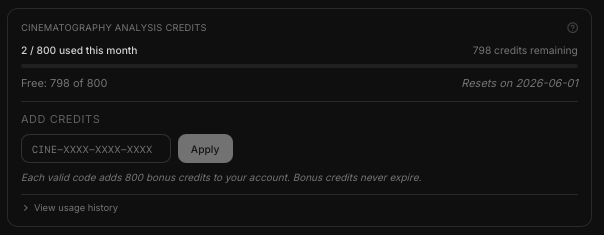
- See how many credits you have left.
- Enter a code to top up.
For the full pricing and credit-pack breakdown, see Cinematography Analysis Credits.
License
The last tab of the Settings panel manages your installation and your Colourlab account.
This installation
Activate or deactivate this Mac as one of your allowed installations. You can run up to two activated installations per license — deactivate one here when you want to move to a new machine.
Account
Sign in and sign out of your Colourlab account.
Beta limitation: during the public beta, sign-in is via Google only.
Manage your subscription (web)
A button on the License tab opens the back-end of the Colourlab licensing system in your browser. There you can (with more features arriving over time):
- Adjust your subscription tier.
- Manage your credits.
- Adjust the number of licenses on your account.
- Stop or renew your subscription.