Users
Colourlab Ai 4 supports users — a way for more than one colorist to share the same installation without their work bleeding into each other's. Every user has their own projects, references, and clips, kept fully separate from everyone else on the machine.
If you're the only person on this Mac, you'll still want a user — it's how Colourlab Ai 4 knows whose projects to load. If two or more colorists share a machine, each one gets their own space, and switching users switches the entire context: projects, media, references.
Creating a user
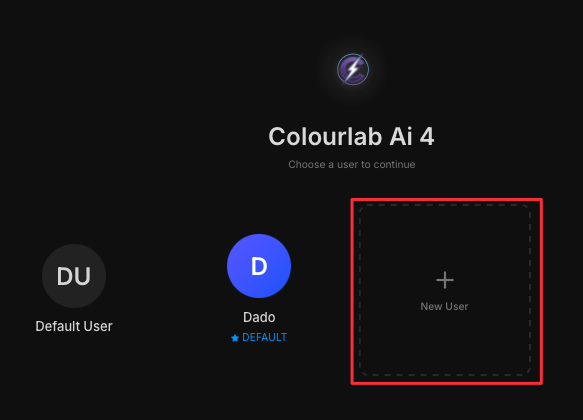
On the user picker, click the New User box. A fresh user is added to the list.
Editing a user
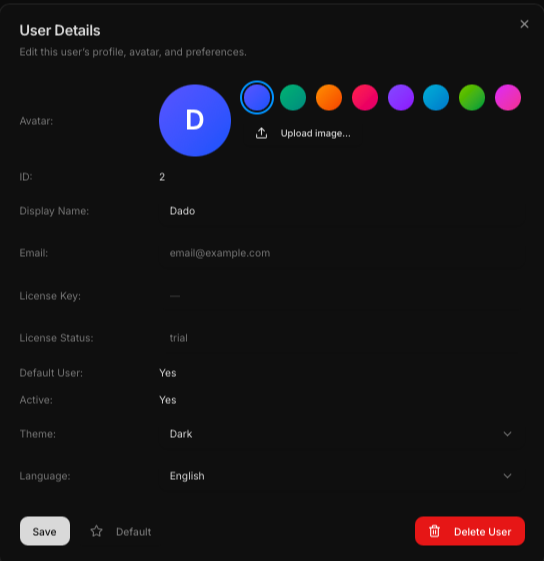
Right-click any user to open the edit panel. From here you can:
- Pick an avatar color. Purely visual — choose whatever you like.
- Change the name.
- Add an email. Recommended — email will become important once in-app messaging ships in a future release.
- See the license status attached to this user.
- Set a default user. Click the star in the bottom-left corner to mark this user as the default; they'll load automatically the next time Colourlab Ai 4 opens.
Theme and language
Right now Colourlab Ai 4 ships with the dark theme and English only. More languages are on the roadmap.
Deleting a user
The edit panel also includes the option to delete the user.
Danger — read this first. Deleting a user permanently removes everything that belongs to them: their projects, the media inside those projects, and the reference clips associated with them. There is no undo. Only delete a user when you're certain you want all of their work gone.