Download & Install
Colourlab Ai 4 is distributed directly from 4.colourlab.ai (opens in a new tab).
Private beta — invitation only
During the private beta, only registered beta customers can download Colourlab Ai 4. Each invitation includes a personalized download link sent to your registered email address.
Beta builds don't require a license. They're time-limited and expire automatically 14 days after install, so the licensing and activation process described below does not apply to private beta builds.
Please don't share your beta link. Distribution outside the private beta community is not permitted. If a colleague wants access, point them at the public sign-up so they can join the beta program directly.
Download
- Open the invitation email from Colourlab.
- Click the Download button — the
.dmginstaller saves to your Downloads folder.
Install
- Double-click the downloaded
.dmgto mount it. - Drag Colourlab Ai 4 into your Applications folder.
- Eject the disk image.
First launch
Colourlab Ai 4 is fully notarized by Apple — macOS Gatekeeper opens it without warnings.
- Open Applications and double-click Colourlab Ai 4.
- Sign in with your Google account when prompted — see Licensing & Activation for the full sign-in and activation flow.
- Activate this installation. You can activate up to two computers per license.
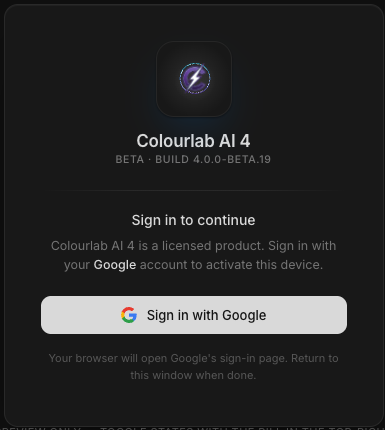
After activation, the onboarding flow guides you through three setup steps:
1. Download the Reference Library
The Reference Library is a curated set of inspiration images that powers reference-driven grading. It's not bundled with the installer — it lives separately on your machine so we can update and grow it continuously over time. Onboarding starts the initial download for you.
2. Grant Documents access
The Reference Library is saved to ~/Documents/X03/ by default. macOS will ask for permission to read and write your Documents folder — approve it.
3. Database location
The Colourlab Ai 4 application library and project database live at:
~/Library/Application Support/ai.colourlab.editor/This is where your projects, settings, and history are stored.
Heads up: the database can get large. Big projects and rich Reference Libraries can grow the database to many gigabytes over time. That's expected — we'll cover database housekeeping (cleanup, archiving, moving the database to external storage) in the tutorials.
Projects are kept inside the application database. You can export individual projects to standalone files for backup or sharing whenever you like — see the User Guide for the export flow.
Removing the install
To remove Colourlab Ai 4 completely you'll delete three things: the app, ~/Documents/X03/ (the Reference Library), and ~/Library/Application Support/ai.colourlab.editor/ (the database). See Uninstalling for the step-by-step.
Next
- Licensing & Activation — Google sign-in, the two-machine limit, and how to deactivate an installation.
- Key Concepts — the vocabulary you'll use throughout the docs.