Export
The Export panel is where you render your graded timeline out of Colourlab Ai 4. Rendering is fully GPU-accelerated and very fast — pressing Export and getting a finished file back is one of the most satisfying moments in the application.
You reach the Export panel from the Export button in the top bar of the Color tab.
Private beta scope. During private beta, the Export panel is the only way to get your graded clips out of Colourlab Ai 4. More export targets — DaVinci, OTIO, and Premiere — are on the roadmap and will land during the beta program.
Export Video
Render the timeline (or its individual clips) as graded video files.
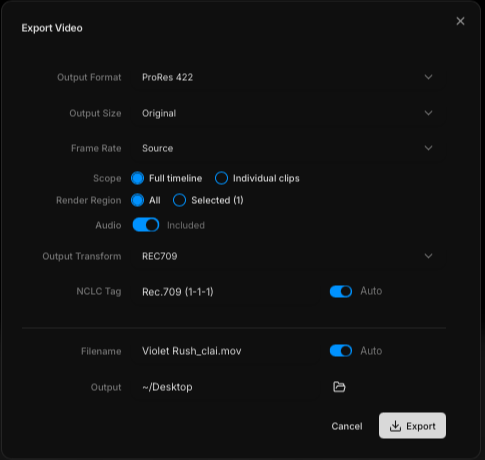
The settings below the selector change to suit whichever mode you're in.
Output format
Pick a codec. The current options are standard Apple formats:
- ProRes 422
- ProRes 422 HQ
- H.264
- H.265
Output size
Either keep the original canvas size (matches your project's Canvas resolution from Settings) or resize on output to a different resolution.
Frame rate
We recommend leaving frame rate on Source. Don't re-time the timeline at export. Use the project's frame rate as set in Settings and let the export pass it through unchanged.
Scope
Choose how the timeline is written:
- All timeline as one clip — a single rendered file that contains the entire timeline. Use this when you want a finished deliverable.
- Render each clip individually — one rendered file per clip on the timeline. Useful when you want to go back into your online / conform system and keep the cut intact with each clip graded separately.
Render Region
Render all timeline or Selected Clips
Audio
Decide whether audio is preserved in the output or stripped.
Output Transform
Here it is possible to override the output transform setting and render in any color space of choice.
NCLC Tag
This is color management tagging system by Apple. If unsure what setting to use just leave on Auto
File naming
- Auto — Colourlab Ai 4 names the file(s) for you.
- Manual — type your own name.
Destination
Click the folder icon to choose where the exported files land on disk.